Monday, September 30, 2013

Creating Macros (LARUG Sept 2013)

At the LARUG Sept 2013 meeting (video here: http://losangelesrevitusersgroup.blogspot.com/2013/09/larug-september-2013-macro-creation-in.html) I presented on Revit Macros. As promised I would do a follow up of the process, links to tools, and the macros themselves. In this post I will give you everything to download and I will follow up with separate posts about each macro over the next few days.

Here are the downloads and links:

Revit Software Development kits
Revit Development Blogs
Revit Macro/Programming Tools
Macros (Individual posts to follow)
* Disclaimer: I am not an expert in programming, so the macros below may or may not work and I hold no responsibility to any problems they may cause your projects.
* Disclaimer #2: Fill free to use and edit these macros, but please give credit if you republish them.

* I included install instructions in the Revit Lookup zip files and the LARUG zip file. If you have questions on how to install these, leave a comment below.

Tuesday, October 09, 2012

Using Note Blocks for General Notes

During September’s LARUG meeting I presented on Logic Based Families and Note Blocks. I was barely able to touch on Note Blocks in my presentation and left many people wanting more info. So I am going to do a few posts about Note Blocks…

First off a quick explanation about Note Blocks. Revit Note Blocks have become a bit forgotten over the past few years as more and more new people have started using Revit. Note Blocks are extremely powerful in that they are the only 2D family in Revit that can contain data (may need to fact check this). Since Note Blocks can contain data, they can also be scheduled. Note Blocks are created by using the Generic Annotation family template.

Since Note Blocks can be scheduled, they make great families for creating notes. The following instructions show how to create General Notes using Note Blocks, but also can be used for any kind of notes like demolition, discipline specific, key notes, etc.

1) Create the Note Block

Create a new family using the Generic Annotation template. Add some parameters to represent the note number, note text, note system, etc. Here is an image of my Note Block and its parameters:

General_Notes_01

System Used to separate notes into schedules. Values can be anything like General, Demolition, Landscape, etc
Letter This is the note letter or number
Note Text The actual note text
Sheet This is an optional parameter you can use to further filter the schedule to only show certain notes per sheet by typing in a sheet number
Discipline Used to filter schedules by discipline
Show Note Toggles visibility for System, Sheet, Discipline, and Note Text parameters. Leaves visible only the circle and Letter parameter
Included A yes/no parameter for filtering schedule. Checked to include in schedule

Make sure to make the parameters text data types and instance based (except the discipline). Also, you don’t need to do exactly the same parameters as mine. Do what works best for you.

To make the Show Note parameter work, select the labels that you want to hide and link their visibility to the Show Note parameter. This way you can hide everything but the letter/number and the circle making it work like a keynote

2) Entering Data into Note Block

Once your family is done, load it into a test project and try it out. You can click on the ? marks to input the info. And since its a Note Block, the data is contained in the annotation itself. So you don’t need to associate it to a 3D object.

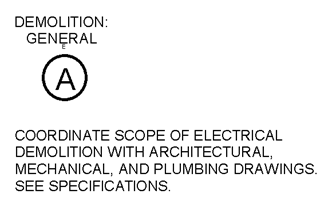
How I use these in my projects is to create Drafting views and place the family as many times as I need notes. Then I edit the family parameters to reflect that data I want. These are only for editing, these are not the views that will be used to show the notes on the actual sheets. We’ll use a schedule for that. Here is an example of a single family and a second example of several copies placed in a Drafting View:
General_Notes_02

General_Notes_03

3) Creating the Schedule

To create the schedule you need to use the Schedule button list item called “Note Block”. Then you pick the name of your Note Block family. Use the schedule filters to filter based on System, Sheet, Discipline, and Include. Here is an example:

General_Notes_04

So lastly, I format the schedule and add a nice custom header (a post to come later on schedule tips). And here is what it looks like on the sheet (Demo Notes in this case):

General_Notes_05

I didn’t go into heavy detail on many of the steps but hopefully you get the idea and can fill in the details. In a future post I will go into a separate method that uses Note Blocks only to create General Notes that work well also.

Please leave questions/comments and I will respond as soon as I can.

5 Years is Long Enough

Its been about 5 years since I created this blog and last created a post. During the last few years I have had the honor of joining Jay Zallan in running LARUG. During that time the urge to start blogging has become more and more often. I have received numerous requests to expand upon my recent LARUG presentations on schedules, formula driven families, and noteblocks. I’ve decided to use this blog to expand on those items and more. Hopefully, I can do a post at least once a week. We’ll see how it goes…

Monday, December 17, 2007

IES VE Toolkits - Now in Revit Architecture too

Revit MEP 2008 included IES VE toolkits when it was released in the spring of 2007. Many, many architects were very upset that only the MEP version was able to interact with the VE toolkits for sustainable design.

Well the architects have been heard. IES has included a Revit Architecture plugin with their newest release. Architects can now analyze their models for sustainability from inside Revit Architecture 2008. Here is the IES press release.

So what are IES VE toolkits?

"The Toolkits are designed to allow architects to undertake top-level building simulation analysis, facilitating sustainable design at the click of a few buttons."

And now a direct link to the toolkit webpage, IES VE Toolkits for Revit Architecture.


Wednesday, November 08, 2006

Revit Buildings Exported to AutoCAD Site Plans

Since Revit is lacking features in the site area, many companies still use AutoCAD for Civil/Site drawings. Many times the architects have started their building without importing the site plan. So when they import the site plan for the first time, they have to move it to match the building. They will eventually want to export the building outline to give to the civil guys to put in their AutoCAD site plan. So how do you get your building to export out of Revit so that it will match up exactly with the site plan?

1. First you need to draw a line in the site plan DWG file that starts at 0,0.

2. Then reload the DWG link into Revit.

3. You will now be able to see the line in Revit. (If you can't, make sure the layer that you created it on is currently turned on in Visibility/Graphics)

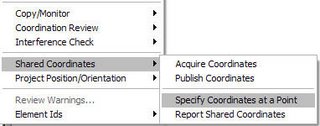
4. Next you want to select the menu item: Tools -> Shared Coordinates -> Specify Coordinates at a Point


5. With the new cursor: Choose the end point of the line in the CAD file that starts at 0,0.

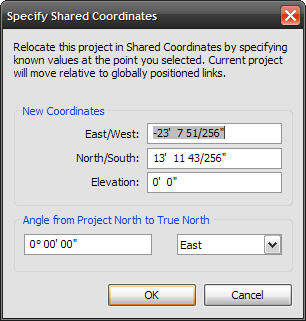
6.A window will pop up with the current Revit coordinates. Replace the values of East/West and North/South with 0. This will shift the Revit coordinates to use this point as 0,0.


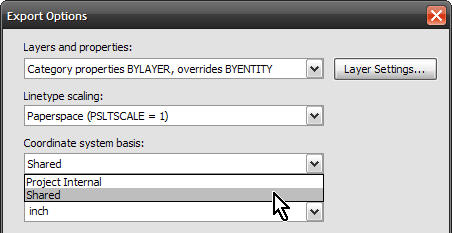
7. You can now export your building to DWG. You will want to go to the Options button and change the setting Coordinate System Basis to Shared.


8. Now you can xref the exported building into the site plan DWG with an insert point of 0,0.